
How to Finish More Music in Ableton Live: A Simple 3-Step Workflow
Aug 16, 2026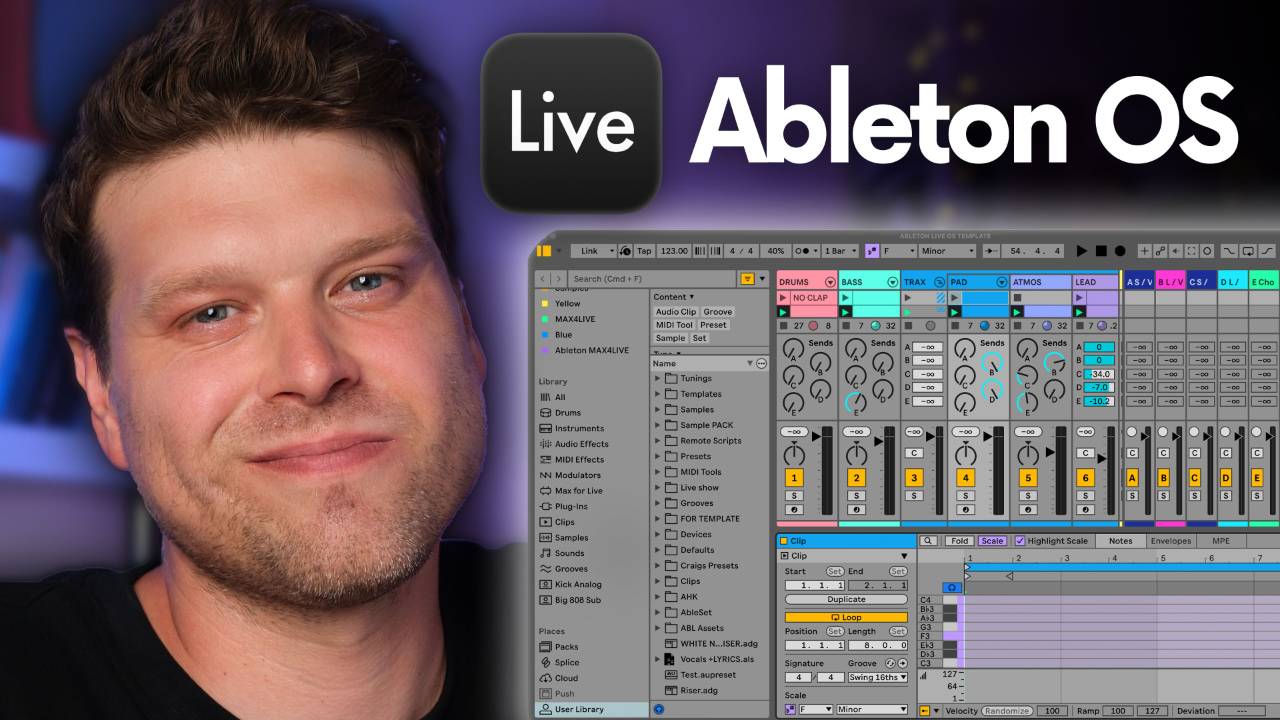
This article shows you how to finish more music in Ableton Live.
It is built around a simple system you can repeat around a full time job, a family, and whatever else the week throws at you.
We will look at a 3-step workflow that runs from sketching ideas in Ableton Note, through building them up in Ableton Live, to arranging a finished track with a method called destination first.
It is the same system I use myself, and the one I have taught to thousands of students online at Push Patterns and at universities across the UK.
By the end of this article you will know how to take a rough idea and turn it into a finished track, instead of adding it to the pile of loops on your hard drive.
Let's get to it.
Key Takeaways for Finishing More Music in Ableton Live
- Start ideas away from the computer. Ableton Note lets you capture the foundations of a track on your phone, so the blank screen is never where you begin.
- Let Ableton Cloud carry the idea across. Your Note set opens in Ableton Live with the same stock devices in place, ready to build on rather than re-import as audio.
- Improve the sounds, then layer with Splice. Drop the idea into a template, swap the stock sounds, and use search with sound so your loops do not end up sounding like everyone else's.
- Arrange backwards from the full section. The destination first method uses your busiest, most finished section as the target and builds the rest of the song to reach it.
- A system beats waiting for inspiration. Finishing more music in Ableton Live comes from running the same process every time, so momentum does the work.
The 3-Step Ableton Live Workflow for Finishing More Music
Most producers do not have a problem starting music.
They have a problem finishing it.
You sit down, get a loop going, hit a wall, and walk away.
Six weeks later you open it back up and cannot remember what you were doing.
The fix is a system you run the same way every time, so you are not relearning your own process on every session.
I call mine Ableton OS, and it has 3 stages: play, create and master.
Play is where you start the idea, away from the computer, on your phone.
Create is where you bring that idea into Ableton Live and build it into something with weight.
Master is where you arrange it into a finished track, which is the stage most people find hardest and the one this system makes the most manageable.
None of it needs a free weekend.
Play happens on the bus or the sofa.
Create fits into an hour once the house is quiet, and master is a run of small decisions you can make in short sittings.
The point is momentum.
Each stage hands the next one something to work with, so you are always moving a track forward rather than staring at a blank screen.
How to Start Music Ideas in Ableton Note
The first stage happens on your phone in Ableton Note.
Note is Ableton's mobile app for making music when you are out and about, and it is built around a feature called Capture.
Here is why that matters.
There is no red record button.
You know what happens when you hit record.
All your musical ability leaves your body, you go to play something, and it falls apart.
Turn the light off and you can play again.
Capture removes the light.
You play something in with no metronome and no pressure, and Note keeps it for you.
From there you can quantize it and change the tempo.
Add a bit of swing if it needs it.
Bad ideas get undone in a tap.
Happy accidents get kept.
Turn on the repeat function, choose a pad, and add a few velocity layers to build a groove.
Hold at the top of the loop to duplicate it from 2 bars to 4, then jam some rolls over the top.
The aim of this stage is a foundation, not a finished song.
A solid beat, a set of chords and a bass line give you materials to work on later.
For chords, Note lays the notes out in key so you cannot hit a wrong one.
My fingers are too big for a phone screen, so I play two notes, either root and fifth or root and third, then open the MIDI editor and tidy them up.
Add the thirds, then extend the notes and transpose a few up an octave until it sounds like a chord progression.
Play in a bass and you have the fundamentals of a track sitting on your phone.
If you find it hard making chords or chord progressions, my guide on how to write chord progressions in Ableton Live breaks the method down step by step.
How to Turn a Note Idea into a Track in Ableton Live
Most mobile music apps leave you with the same problem.
You make something you like, and it is stuck inside the app.
Ableton Cloud solves that, and it is one of Ableton's best kept secrets.
Tap the three dots on your Note set and upload it to the cloud.
It syncs in seconds.
To pick it up on the computer, open Ableton Live's preferences with command comma, or control comma on Windows, go to the Library tab, and switch Show Cloud on.
The first time you do this it will ask you to sign in through your browser.
Now open Live's browser, scroll down to Cloud, and your set is sitting there.
Double click to open it.
That is a better start than a blank screen.
Everything in Note is built from Ableton stock effects and devices, so it all opens natively.
The same drum kit and reverb you used in Note, ready to edit.
Swap in your own presets and VSTs wherever you fancy.
Here is where most people go wrong.
The set comes in with no send or return tracks.
So load it into a template instead.
Mine has a drum rack, bass and pad sounds, atmos, loop tracks, a side chain track, and a master chain already in place.
Anything you drop into it starts around 60% finished.
Drag your drum clip onto the template's drum track.
I have tweaked the kick in mine so it hits harder than the stock Note kit, and the difference is obvious the moment you compare the two.
Bring the bass in, push it up a couple of octaves if it is sitting too low, open the filter a touch, and send it to the side chain track for a bit of pump.
Bring the chords in, push them up an octave, and use snapshots so you can flick through presets without losing your idea scrolling a giant browser.
Drop the atmos in as a layer and the track already has weight.
How to Layer Loops in Ableton Live with Splice
Splice is built into Ableton's browser now, and that changed how useful it is.
I was never much of a fan until it lived inside Live.
Now it is frictionless, and it works as scaffolding to get ideas moving.
There is a trap, though.
When you search a sound in Splice, the results are sorted by most popular.
Think about what that means.
If a loop is the most popular, everyone is using it, so your track ends up sounding like everyone else's.
Use the search with sound feature instead, and point it at your own track.
Highlight everything in the session, press command G, or control G on Windows, to group it, then bounce that group to a new track.
That gives you a quick bounce of the whole idea.
Ungroup the original tracks, highlight them, and press 0 to switch them back on.
Now drag the bounced file into search with sound.
Splice listens to your track, matches the key, and recommends loops that fit what you already have.
Drag the ones you like onto your loop tracks.
The reason they go on dedicated loop tracks is that Splice loops come in hot.
Each of my loop tracks has a Utility device set to 8 dB of gain reduction, so the loop tucks in underneath the track rather than swamping it.
Go in with a plan before you start dragging.
I teach this in my Ableton Accelerator course.
Decide what you are looking for first, maybe a harmonic texture, a shaker, a drum top and some vocals, then stop.
Throw loops in with no plan and the track turns to mush.
How to Arrange a Song in Ableton Live with the Destination First Method
This is the stage everyone dreads.
Turning a loop into a full song.
It feels like the hardest part of production, and it stops most tracks dead.
A system makes it manageable, and mine is called destination first.
If arrangement view is new ground for you, my walkthrough on how to get started with Ableton Live covers recording a session into an arrangement from scratch.
The idea is simple.
The section you have built, with the chords, bass, drums and Splice loops all playing, is your fullest, most finished moment.
You are probably out of ideas at that point too.
So make that section the destination, and arrange the rest of the song to arrive at it.
In my template there are markers already laid out in arrangement view, and one of them is the destination.
Click the first clip in your session, hold shift and click the last, and press command C.
Flip to arrangement view, find the marker, and press command V, or control V on Windows.
Press command D to duplicate it so you have two destination points.
Now work backwards from both.
Building tension is a matter of taking things away, so that when the track hits the destination, everything drops back in.
Put your headphones on for this part.
Go into the drum rack, highlight the kick, and press 0 to mute it a couple of bars before the drop.
You will be surprised how much that does.
Add a bar of silence across the tracks just before the section lands.
Pull out a loop or two, the synth layer say, and press 0 rather than deleting, so you can bring it back if you change your mind.
Then reach for a riser.
I search Splice for a drum riser and drop it in so it finishes right on the build.
A transition from your own library over the top and the section is done.
Loop to the next locator, copy it with command C, and paste it into the second build.
From there you fill in the verses, the intro, the breakdown and the outro, and the arrangement takes shape.
Common Mistakes That Stop You Finishing Tracks in Ableton
A few things quietly stop producers finishing, and I see them again and again.
The first is starting cold.
Opening Ableton Live to a blank screen with no idea in front of you is the fastest way to lose an hour, which is why the whole system starts on your phone.
The second is leaning on the most popular Splice loops.
They are popular because everyone uses them, so they make your track sound like everyone else's.
The third is layering with no plan.
Keep dragging loops in without deciding what the track needs and it turns to mush.
The fourth is skipping the boring bit of organising.
Colour your tracks and name them before you close the set, or you will open it next week with no idea what any of it is.
The last one is being too precious.
In Note I move chords around without agonising over them, and that looseness is what keeps ideas flowing.
A finished track you are half happy with teaches you more than a perfect loop that never leaves the session.
Final Thoughts on Finishing Music in Ableton Live
Finishing music in Ableton Live comes down to having a process you trust, not a good day.
Play, create, master.
Start the idea on your phone, build it up in Live, and arrange it backwards from its fullest section.
Run it the same way each time and finishing tracks stops feeling out of reach.
You will still write the odd loop that goes nowhere.
That is fine.
A finished track you are 80% happy with is worth more than a perfect 8 bars that never leave the session.
If you want the full version of this system, with the template and the destination first markers already built for you, that is what I teach inside my Ableton Accelerator course.
To see everything mentioned in this article in action, you can do so in this video here.
Frequently Asked Questions About Finishing Music in Ableton Live
Is Ableton Note free?
No, Ableton Note is a paid app on the App Store for iPhone and iPad.
There is no free version.
What is free is Ableton Live 12 Lite, which every Note user gets access to through the app, so you can carry a Note idea onto the computer without paying for a full copy of Live to start with.
If you are only sketching ideas on your phone, Note on its own is all you need for the play stage.
Do you need Ableton Note to finish music in Ableton Live?
No.
Note is where I start ideas because it kills the pressure of a blank screen, but the workflow works without it.
You can play your idea straight into Ableton Live's session view instead and pick up the process from there.
The stages that do the heavy lifting for finishing music in Ableton Live are building the idea into a template and arranging it with the destination first method.
Note just makes the starting easier.
Can you use Ableton Cloud without Ableton Note?
Ableton Cloud is switched on inside Live's preferences under the Library tab, and it works with every edition of Live from Lite upward.
On iOS, though, Cloud is only reachable from inside Note.
So you cannot upload a Set to Cloud from your phone without Note installed.
On the desktop side you can still see and open any Set that was synced to Cloud, so the two apps are really meant to work as a pair.
How many Sets can you sync with Ableton Cloud?
Ableton Cloud syncs up to 8 Sets at once.
That is plenty for this workflow, because Cloud is a bridge rather than long term storage.
Once a Note Set is open in Ableton Live and you save it as a Live project, it lives on your computer and no longer needs a Cloud slot.
Clear synced Sets you have already brought across and you will always have room for the next idea coming off your phone.
Do you need Splice to finish a track in Ableton Live?
No, Splice is optional.
I use it as scaffolding to layer a track quickly, but you can finish music in Ableton Live with stock devices and your own samples alone.
If you do use it, the one habit worth keeping is search with sound rather than the most popular loops, so your track does not end up sounding like everyone else's.
Splice speeds up layering.
It does not do the finishing for you.
Can you finish a whole song on your phone in Ableton Note?
You can get a long way, but Note is built for sketching rather than finishing.
It is where you capture a beat, some chords and a bass, so you have real materials to work with later.
The arranging, the mixing and the fine detail happen once the idea moves into Ableton Live through Cloud.
Think of Note as the start of the track, not the whole track.
The finishing lives on the computer.
How long should it take to finish a track in Ableton Live?
There is no fixed number, and chasing one is a trap.
The point of this system is that no single stage needs a free weekend.
You sketch on your phone in spare minutes, build the idea into a template in about an hour, and arrange it across a run of short sittings.
A track you are 80% happy with in a week beats a perfect loop you polish for a month and never release.
About the Author
Craig Lowe is a professional touring playback engineer, Ableton Live specialist and educator based in the UK.
He has over 10 years of teaching experience, online at Push Patterns and at universities including ICMP, BIMM, ACM and ThinkSpace Education.
His Ableton programming credits include Sam Fender, Melanie C, Years & Years and Skunk Anansie.
He runs Push Patterns, where over 1,000 students have learned to produce and perform with Ableton Live, at pushpatterns.com.
If you are interested in learning Ableton Live 12 or the Push 3 in a bit more detail, check the course here:
