
Grip Review: Control Ableton Live From Your Phone
Aug 30, 2026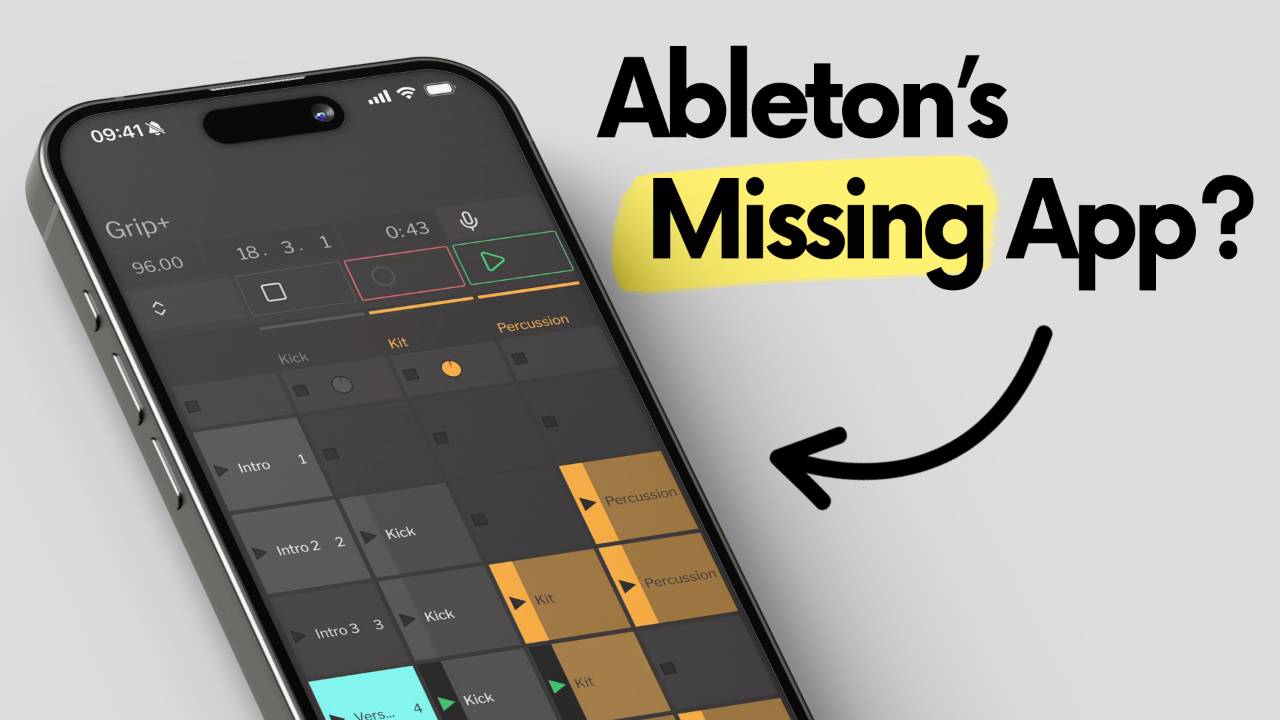
In this article I'm going to take a look at Grip. It's an iOS and Android app built to control Ableton Live from your phone over Wi-Fi, covering setup, session view, arrangement control, voice commands, and whether it's worth using day to day.
Grip isn't the first app to try this.
TouchOSC and Knobbler already exist.
What made me want to write this up is what Grip gets right that the others don't, and a couple of things that genuinely surprised me.
The first fixes a gap that's been debated for as long as the Ableton Push 3 has existed.
The second is a button that isn't even in Ableton Live itself.
I'll get to both.
I've been using Grip in my own studio, so this is what it's like day to day, not a spec sheet.
How to Set Up Grip to Control Ableton Live From Your Phone
There are 2 parts to setting up Grip.
First, download and install the Grip Companion desktop app on your computer.
If it's your first time installing on a Mac, go to Privacy and Security and give it access to control the computer.
Once that's done, open Ableton Live and go to Settings.
Go to the MIDI tab, set the Control Surface to Grip, set the Input to Grip, and enable the track.
Then download the Grip app on your phone.
It should show up automatically.
The only real problem you can run into is both devices need to be on the same internet connection.
If you're on 5G on your phone trying to control Ableton Live on your computer, it isn't going to happen.
Make sure your phone and your computer are on the same Wi-Fi, then open the app.
What Grip Does as an Ableton Remote Control App
The main page of Grip is where most of the day to day control lives.
Along the top, you've got tempo control and your arrangement position, shown in bars, beats and 16th notes.
You also get it shown in time, which Ableton Live itself doesn't give you.
A dropdown menu gives you the track listing, with quick access to volume, record enable, solo, sends and returns, and the main output.
Below that sits automation enable, MIDI overdub, and a toggle for arrangement view.
Then the main transport: session record, metronome, loop, undo, save, stop, play, and scene launch, plus stop all clips, arrangement record, and pause.
Having save available from your phone is a small thing that turns out to matter.
Beyond the main page, there's a dedicated session view page.
It shows your clips much like a Launchpad or the Push 3.
Flip your phone into landscape and you get more tracks on screen and more control over the session at once, with room to stop all clips, launch scenes, and bring elements in and out as you go.
Switch to the mixer view and you get volume, sends, returns, pan and record enable for every track, so you can mix on the move as well as launch clips.
Arrangement View and Recording With Grip
If you've come from the Push 3, you'll know arrangement view control is a long running gap on that controller.
Grip gives it to you in an app.
You can select a marker and press play, jump to the next marker or back with the arrows, and switch into session view without losing your place.
For playing notes, Grip has a built-in keyboard, and a pad view if you're coming from Push 3 or Move and prefer that layout.
I'm not the best keys player in the world, so I lean on the scale lock.
Choose the key your song is in, F minor for the track I was working on, and every note you play lands in key.
You can still get the timing wrong.
You just can't hit a wrong note.
That's where quantisation comes in.
There's a global quantisation setting, and there's fixed length record, which exists on the Push controllers and, I believe, the Novation Launchpad Pro.
Why it isn't a button in Ableton Live itself, I don't know, but Grip has it.
Set a duration, 2 bars for example, and the clip records for exactly that long before dropping into MIDI overdub.
Fixed length record only works from a full stop, so keep that in mind.
Stop all clips, select the scene you want to record into, then press session record.
Then there's record quantisation, which is different from the usual post recording quantise.
This happens in real time, as you play.
It's Ableton Live's own record quantisation setting, surfaced here where you can reach it while you're playing.
Voice Control for Ableton Live With Grip
The feature that changes how you use Grip is the microphone icon at the top of the app.
Turn it on, grant the permission, and you can control Live with your voice.
Play, stop, loop, arming a track, arming the whole session, it all works from a spoken command.
It behaves a bit like Siri.
You say the word and it fires.
Not every command lands.
When I was testing it, one didn't register at all.
The full list of what you can say sits in the settings, and there are more commands mapped in than you'd expect.
I've been using it more than I thought I would, mostly because it means I can keep both hands on an instrument and still control the session.
Is Grip Worth It Compared to Other Ableton Controller Apps
The alternative is buying a MIDI controller and mapping it all out by hand.
Or you dig out an old iPad and spend an evening setting up one of the other apps.
It will work.
But who's got time for that?
With Grip, you download the app, download the desktop app, adjust 2 settings, and it works.
Part of the value is the mindset shift.
It gets you away from staring at the Ableton screen hoping to find new ideas.
You can turn it on, walk around your studio, and jam, which matters more for creativity than it sounds.
You get a 7-day free trial, and if you decide to keep it, it's $15, no subscription.
You can try Grip free for 7 days here, and if you buy it through that link I get a small kickback, which doesn't change what you pay.
I'm not sponsored.
I bought this myself and I'm using it.
For what you get, it's an absolute bargain.
The thing to weigh up is that you're still on a phone or an iPad.
If you've been staring at screens all day already, the last thing you want is another one, and that's when a hardware controller might suit you better.
If you don't fancy using your phone, get off your phone. I've done a deep dive video on every Ableton controller I could get my hands on, the good, the bad, and the ugly. You can see how they stack up against each other side by side in this video.
Final Verdict on Controlling Ableton Live From Your Phone
Grip is the closest thing to an official remote control app that Ableton Live has.
Setup takes minutes.
It does everything you'd want from a session and arrangement companion, and the voice control genuinely earns its place rather than sitting there as a gimmick.
If you want to control Ableton Live from your phone without an evening lost to MIDI mapping, this is where I'd start.
If you want to get more out of Ableton Live itself before you start bolting apps onto it, the Ableton Live 12 course is where I take students through the whole thing from setup to finished track.
To see everything mentioned in this article in action, you can do so in this video here.
Frequently Asked Questions About Grip and Ableton Live
Does Grip work on Android?
Yes, but with a caveat.
Grip's Android app started life in beta, while the iPhone and iPad versions are the more mature builds.
The core transport, session and mixer controls work the same way across platforms, since they all talk to the same Grip Companion desktop app.
If you're on Android and something feels a step behind the iOS version, that's likely why.
Worth checking the current build status before you buy the desktop licence if Android is your only device.
Does Grip work with Ableton Live on Windows?
Yes.
Grip Companion runs on both Mac and Windows.
The MIDI piano and drum pad features were Mac-only at launch, with Windows support for those specific features following later, so if note input from the app matters to you, it's worth confirming that's landed before you buy.
Everything else, transport, session view, arrangement control and voice commands, works the same on both.
Do you need Grip on the same Wi-Fi as your computer?
Yes, this is the setup step that catches people out.
Grip connects to Ableton Live over your local network, so your phone and your computer both need to be on the same Wi-Fi.
If your phone drops onto mobile data, the connection won't work.
It's the first thing to check if the app isn't finding your session.
Can you use Grip on an iPad?
Yes.
Grip supports iPad in both portrait and landscape layouts, and landscape is where the session view page comes into its own, since you get more tracks on screen at once.
The setup is identical to the iPhone version.
If you've got a spare iPad in the studio, it's a genuinely better screen for this than a phone.
Does Grip need Max for Live?
No.
Grip installs its own control surface script in Ableton Live and connects over Wi-Fi, so you don't need Max for Live, MIDI mapping, or any special devices in your set.
That's part of what makes the setup as quick as it is, compared with building your own control surface from scratch.
Can more than 1 phone connect to Grip at once?
Yes.
Grip Companion can accept connections from multiple phones and tablets at the same time, so you and a co-producer or bandmate can each run the app on your own device and control the same session.
Handy in a band or writing session where more than 1 person needs hands on the transport.
What is fixed length recording in Ableton Live?
It's a way of setting a clip to record for a set number of bars and then stop automatically, rather than recording indefinitely until you press stop.
Ableton Live doesn't offer this as a standard feature.
It's normally limited to Push, the Novation Launchpad Pro, or a Max for Live device.
Grip brings the same control into the app, which is the button that isn't in Ableton Live itself.
About the Author
Craig Lowe is a professional touring playback engineer, Ableton Live specialist and educator based in the UK.
He has over 10 years of teaching experience, online at Push Patterns and at universities including ICMP, BIMM, ACM and ThinkSpace Education.
His Ableton programming credits include Sam Fender, Melanie C, Years & Years and Skunk Anansie.
He runs Push Patterns, where over 1,000 students have learned to produce and perform with Ableton Live, at pushpatterns.com.
If you are interested in learning Ableton Live 12 or the Push 3 in a bit more detail, check the course here:
