
How to MIDI Map on Ableton Push 3 Standalone
Mar 22, 2026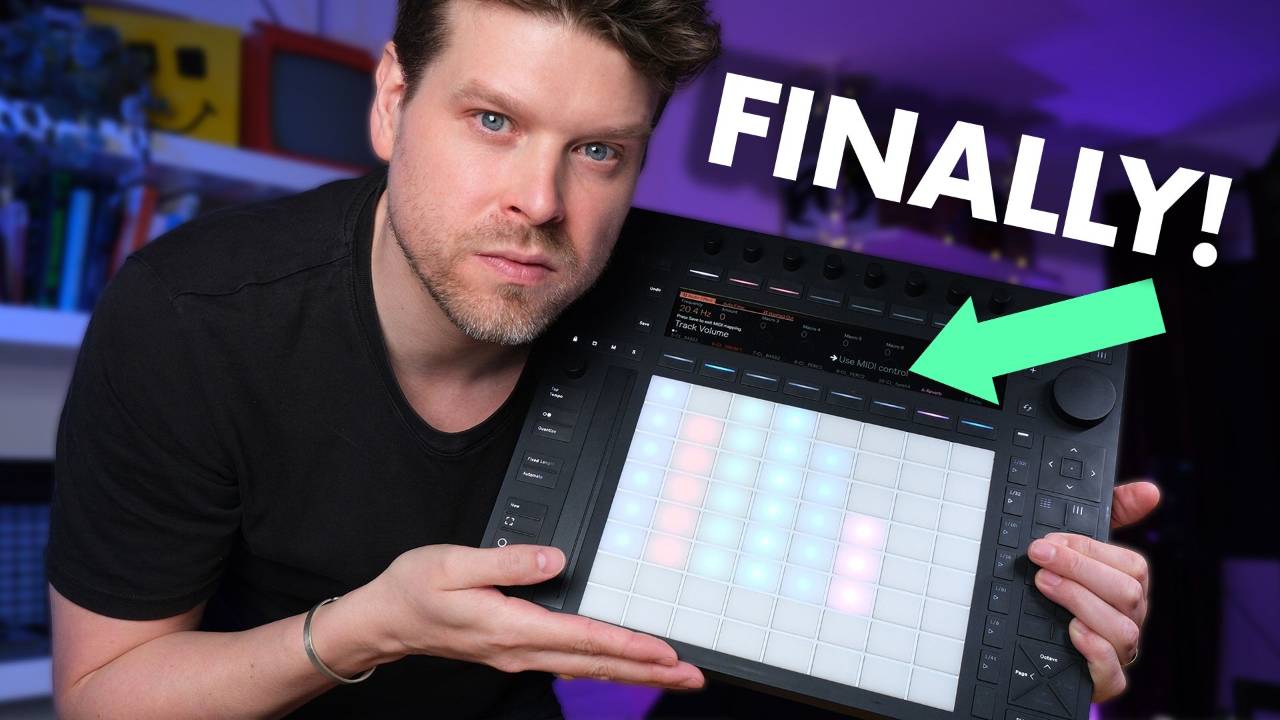
Ableton have finally added MIDI mapping to the Push 3 Standalone. Why this wasn't there from day one, I have no idea. But it's here now, and it changes how you can set up a proper laptop-free performance rig. In this post I'm going to walk you through exactly how MIDI mapping works on the Ableton Push 3 Standalone, show you the control script feature that most people completely missed, and confirm which controllers actually work. Let's get into it.
If you're still finding your feet with the Standalone in general, our free Ableton Push 3 course covers the basics before you get into MIDI mapping.
Quick answer: Can you MIDI map on Push 3 Standalone?
Yes, you can now MIDI map directly on Push 3 Standalone. You can connect an external MIDI controller, enter the MIDI mapping area in Push 3 settings, choose the parameter you want to control, then move the knob, fader or button you want to assign.
You can also use the Control Surface menu for supported controllers, which means some devices can map automatically without setting up every control by hand. That is what makes this update useful. Push 3 can now work much more like the centre of a laptop-free setup, rather than something that always needs Ableton Live on a computer to prepare the mappings first.
How to MIDI Map on the Push 3 Standalone
The interface is a little confusing the first time you see it, so here is exactly how to do it:
- Go to the settings icon on the Push 3 and navigate across to MIDI.
- Where it says Settings, press the button above it to enter a new mapping zone.
- Press Add to create your first mapping.
- Touch the dial on the Push 3 that you want to map.
- Then touch the dial on your MIDI controller that you want to assign it to.
- That's it. Press Save to exit the mapping mode and you're done.
When I first got it working I genuinely said "whoa" out loud. After waiting this long for the feature, it was a relief to find it actually works cleanly.
Managing Your Mappings
Once you have mappings set up, the mapping page is also where you manage them. Go back to Settings, then MIDI Mapping, and you'll see a list of everything you've created, including the note, the device, and the specific control that's been mapped.
From here you can delete individual mappings if you no longer need them.
You can also set minimum and maximum values for each mapping, which is genuinely useful. When I was mapping a filter cutoff, I set the maximum to around 300Hz so the dial didn't completely strip out the track when I brought it in. That kind of fine control makes the feature a lot more practical for live use.
Manually mapping one or two dials this way is completely fine. If you want to control an entire project with loads of parameters though, doing all the mapping by hand gets tedious. That's where the next part of this update comes in.
The Control Script Feature Most People Missed
Alongside manual MIDI mapping, Ableton also added a control script menu to the Push 3 Standalone. This is the part of the update that most people seem to have walked straight past, and I think it's actually the more significant of the two.
What it means in practice is that the Push 3 can now recognise a range of popular Ableton MIDI controllers and enable their built-in Live mappings automatically, with no manual setup required.
To use it, come out of the MIDI mapping mode and go into the settings. Scroll through the list until you find your controller, then select the input and output port. Once that's done, all the dials, faders, and buttons on that controller are automatically mapped to your project on the Ableton Push 3 Standalone.
When I set this up with my Launch Control, it also showed me parameter feedback directly on the Push 3 display, which is a nice touch. I could adjust volumes, solo and mute tracks, arm tracks, and select tracks without touching the Push 3 at all. That is a proper DAWless setup.
Which Ableton Controllers Work with the Push 3 Standalone
I have a fair few controllers here and I tested them all. Here's what I can confirm works with the control script feature on the Push 3 Standalone right now.
Launchpad Mini works. Launchpad X works. Launchpad Pro works. The Ableton Move works. The APC 40 works. Push 1 works.
That covers the most commonly used Ableton MIDI controllers, so the chances are whatever you have sitting on your desk is already supported.
Does the Push 2 Work with the Push 3 Standalone
This is the question everyone has been asking, so I'll answer it clearly. No, the Push 2 does not work with the control script feature just yet.
I plugged it in exactly the same way as all the other controllers, went into the settings, and selected Push 2. The only available option was the Push 2 user port as input and output. It didn't come up as a recognised control script.
My guess is it has something to do with the screen feedback, but I'm not certain. What I do know is that this is still in beta, so Push 2 support could arrive fairly soon. If you're a Push 2 user, it's worth keeping an eye on future updates.
Link Audio: Taking It Even Further
There's one more thing worth mentioning here. You may have heard that you can now stream audio directly into Ableton Live via Link Audio. What a lot of people don't realise is that you can do exactly the same thing with the Push 3 Standalone.
This means you can send audio wirelessly from Live, from the Move, or from the Note straight into the Push 3. Combined with MIDI mapping and the control script feature, this opens up a genuinely flexible laptop-free performance setup that would have been difficult to put together on the Push 3 not long ago.
Final Thoughts
MIDI mapping on the Ableton Push 3 Standalone is long overdue, but the implementation is solid. The manual mapping workflow is straightforward once you know where to look, and the control script feature makes the whole thing significantly more powerful for anyone running a DAWless setup or performing live without a laptop. The Push 2 limitation is frustrating if that's your controller, but with this still in beta there's a reasonable chance it gets resolved.
If you want to see all of this in action, I've put together a full video walkthrough on the Push Patterns YouTube channel where I go through every step live, including the controller tests and the Link Audio setup.
Frequently Asked Questions
Can you MIDI map on Push 3 standalone?
Yes, you can now. This wasn't always the case. For a long time, the only way to get MIDI mappings onto the Push 3 Standalone was to create them in Ableton Live on a computer first and then transfer the set across. Ableton have since added native MIDI mapping directly on the device, which is a significant step for anyone running a laptop-free setup. It took a while to arrive, but the implementation is clean and straightforward once you know where to find it in the settings.
How do I MIDI map on Push 3 standalone?
Go to the settings icon, navigate across to MIDI, then press the button above Settings to enter the mapping zone. Press Add, touch the dial on the Push you want to map, then touch the corresponding dial on your MIDI controller. Press Save to exit. One thing worth knowing is that each mapping also has adjustable minimum and maximum values, which gives you much finer control over how a physical dial translates to a parameter in your project. That alone makes the feature a lot more performance-ready.
How do I control external synths with Push 3 standalone?
Connect your synth via one of the USB-A ports or the MIDI DIN connections on the back of the Push 3. In your project, use an External Instrument device on a MIDI track and route it to the correct MIDI output. From there you can sequence the synth directly from the Push 3 Standalone. Program changes were also added in a recent update and are accessible from the clip tab, so you can switch patches on your hardware without ever touching the synth itself, which is very handy mid-performance.
Can I use an external MIDI controller with Push 3 standalone?
Yes, as long as it is a class-compliant USB MIDI device. Connect it to the USB-A port on the back of the Push 3 and it should be recognised straight away. If your controller is one of the supported devices in the control script list, such as the Launchpad range or the APC 40, it will map automatically with no setup required. If it is not on that list, you will need to use the manual MIDI mapping feature to assign each control yourself, which takes a bit more time but works reliably once it is done.
Do MIDI mappings transfer from Ableton Live to Push 3 standalone?
They should, but it is worth checking after every transfer. A number of users have reported that mappings do not always carry over cleanly when moving a set from Live to the Push 3 Standalone processor. The safest approach is to transfer the set, then go into the MIDI mapping page on the Push and confirm everything is still in place before you rely on it for a performance. It is not a frequent problem, but it is exactly the kind of thing you want to catch before you are on stage rather than during.
About the author
Craig Lowe is a professional touring playback engineer and Ableton Live educator. He has taught at ICMP, BIMM, and ThinkSpace Education, and has worked on prime time TV productions. He is the founder of Push Patterns, a UK-based music production education brand at pushpatterns.com.
If you are interested in learning Ableton Live 12 or the Push 3 in a bit more detail, check the course here:
