
Auriteq Flow Review: The Ultimate DAW Controller for Ableton Live, FL Studio & Logic Pro
Jul 05, 2026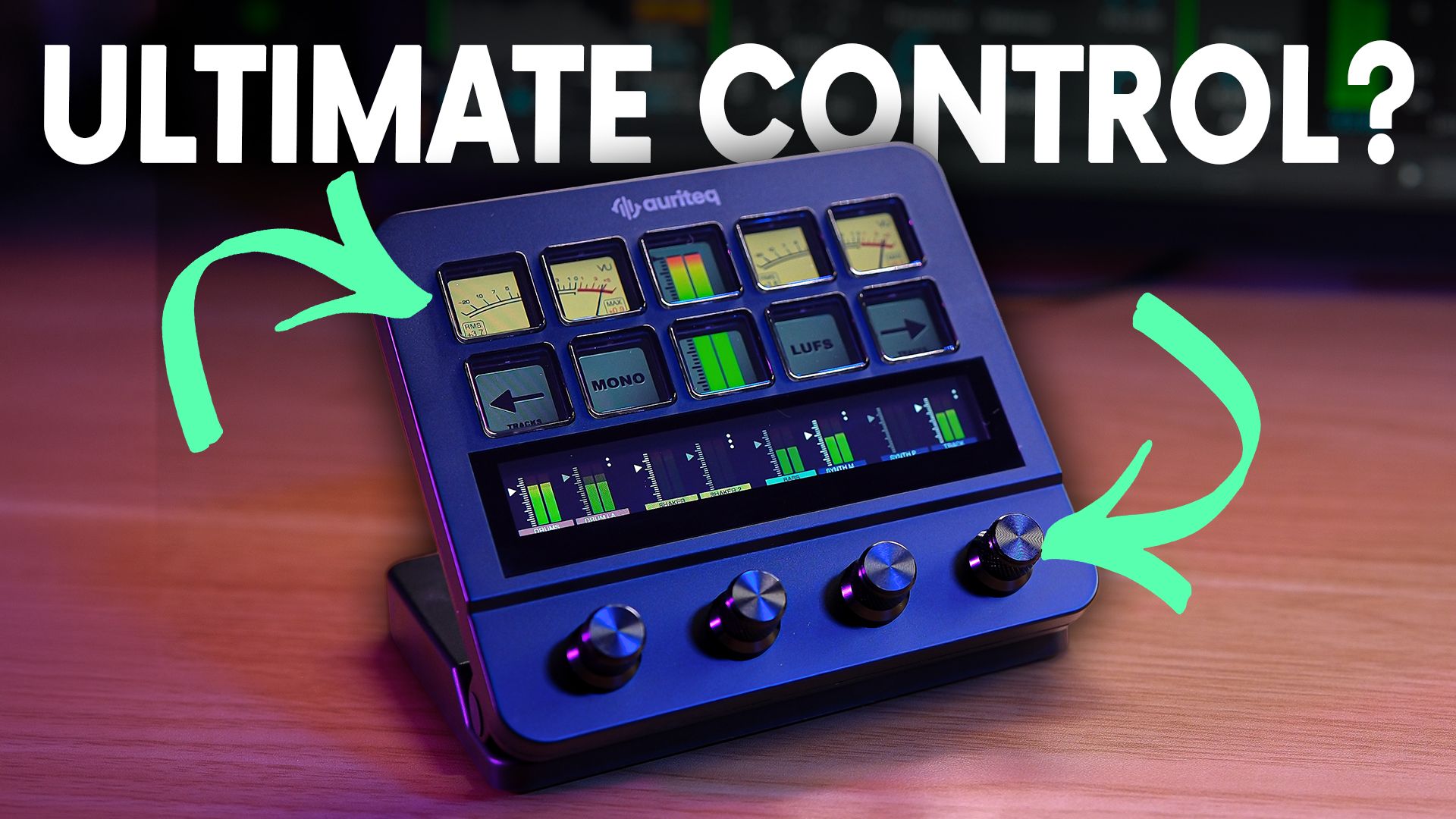
You know the feeling.
You open Ableton, you want the compressor you used last week, and you spend 5 minutes scrolling plugin lists to find it.
You always meant to sort your favourites out.
Be honest, who does?
That's where the Auriteq Flow controller comes in
The Auriteq Flow loads stock instruments and audio effects, third-party plugins, instruments and whole chains at the touch of a button.
It handles all the boring admin stuff that nobody likes to do in Ableton Live it handles all the boring admin stuff that nobody likes to do in Ableton Live
It costs £193, it runs natively in Ableton Live, Logic Pro and FL Studio, and it's pretty much plug and play out of the box.
In this article today, I'll go over what it is, how you can set it up and whether it's worth your money.
What Is the Auriteq Flow DAW Controller?
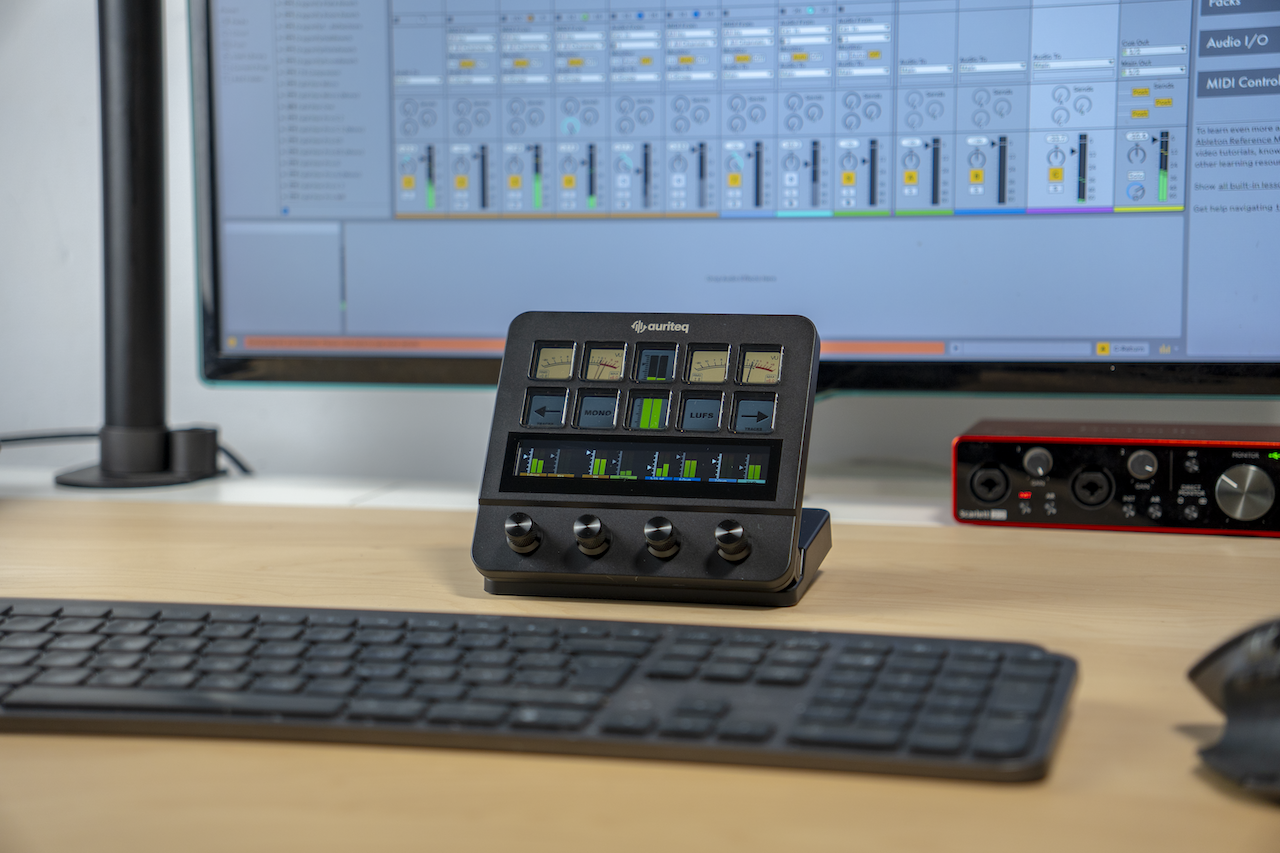
The easiest way to picture the Auriteq Flow is a stream deck that's been built and optimised for a DAW.
It's not a generic controller you've hacked into working with Ableton.
You select it in your MIDI settings, download the app, and you're ready to go.
On the hardware you get 10 buttons, each with its own small screen so you can see what every button is doing.
There's a long touch strip along the bottom that you click and swipe to move between scenes, which are the optimised pages for different jobs.
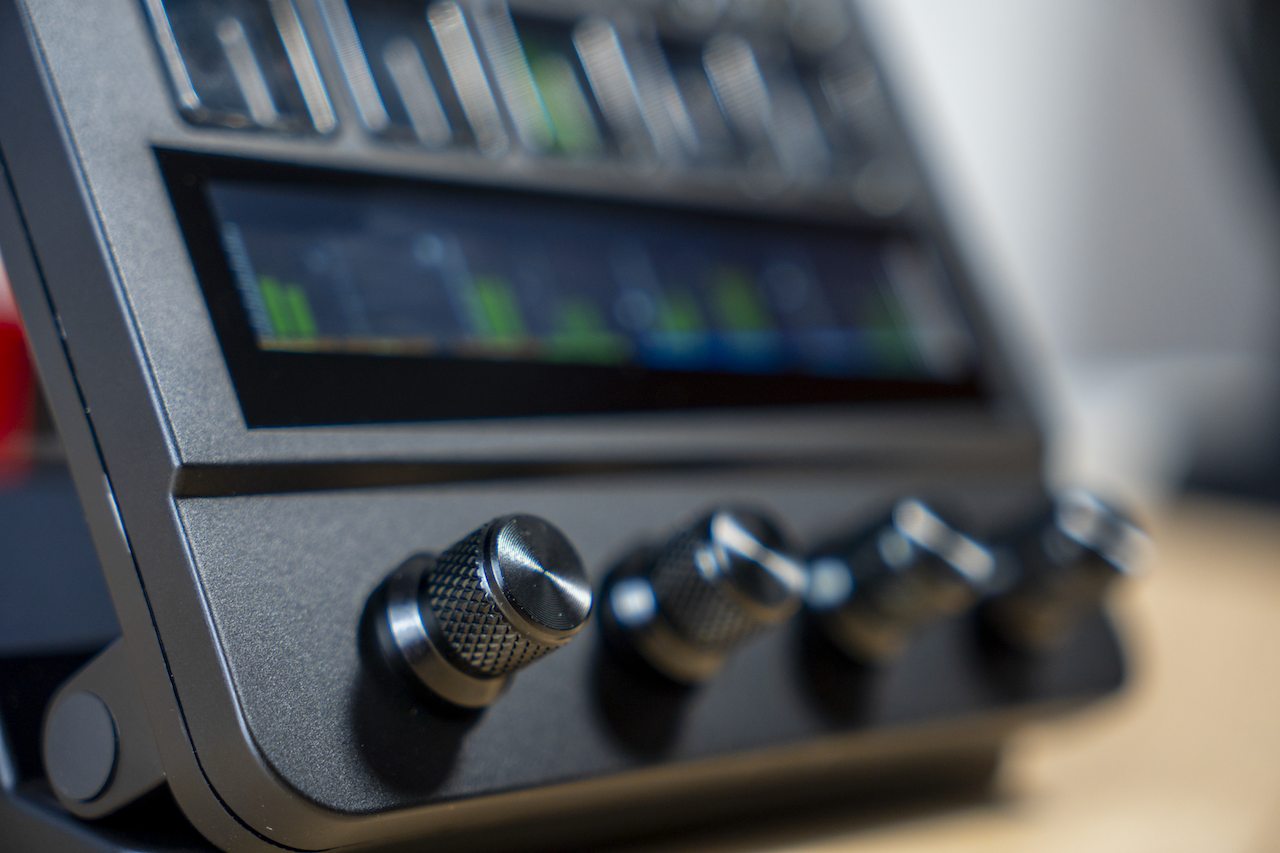
And there are 4 encoders you can turn and press in.
Pressing the encoder in changes the speed and sensitivity of the dial between fast, medium and slow, which is good for precise moves.
It folds flat when you're done, and there are USB ports on the back so it doubles as a hub for the rest of your kit.
The default scene is where you control the basics.
Transport sits right there, play, stop, record.
You can jump to your arrangement, scroll through and select any track, and solo or mute it from the controller.
The sends and returns sit on the knobs.
It also runs natively in Logic Pro and FL Studio, with more DAWs on the way.
Now, the part that earns it the desk space.
Plugin recall.
How Auriteq Flow Loads Plugins and Chains in Ableton Live
Loading a plugin is a single press.
You hit the effects button, choose your plugin, and it's on the track.
No scrolling through endless plugin lists.
No trying to remember which compressor you reached for last week.
Setup is easy and you do it inside Live, on the controller itself.
Select a track, hold the button, pick the plugin you want, load it, and it maps automatically.
It assigns the dials for you and you swipe through them on the touch screen.
If it hasn't grabbed the controls you wanted, you hold the map button, press the encoder you want to use, turn that control in the plugin, and save.
From then on, every time you load that plugin on a new track, your dials are already there.
This is automatic plugin mapping done properly, which is the thing most controllers get wrong.
It works the same with instruments, and you can stack as many as you like.
But loading plugins one at a time still means a few button presses, and that adds up.
That's where chains come in.
A chain loads a whole series of plugins at once, the instruments, the effects, the lot.
You know the vocal chain you always build, or the drum bus that just works, the one you want in every project.
You save the entire chain and drop it onto any track with a single press.
You build it in the companion app.
Select the chains button, drag your plugins on, and reorder them however you like.
Jump back into Live, press the button, and there they all are.
The catch is that it loads the default presets.
So you save it as a recallable preset, name it, and from then on the whole chain loads with your own settings already dialled in.
There's a button that takes this further, called Master.
It works like chains but always applies to your master without you selecting a track.
So when you're deep in a vocal and you want your mastering chain up, you press it and it lands on the master every time.
Chains don't only work with VSTs either.
Ableton's stock devices and Max for Live work the same way.
Ableton Shortcuts That Save Setup Time
Past the plugins, Live is full of fiddly little jobs that eat your time.
Take the return track.
You want a send for your reverb, your Valhalla or whatever, and you can never remember the shortcut to make one.
Like I said, 20 years in and I still don't.
1 button, and there's your return track with the reverb already on it.
Then there's the audio effects track that saves as a template.
This one's clever, because it doesn't only save the plugins, it saves everything on the track, clips and all.
So when you've nailed a drum arrangement, a single press turns it into a template ready for the next track.
And then the shortcuts themselves.
You load in every shortcut you use, sorted into banks, so you stop trying to remember them.
Better still, you can chain a row of shortcuts together so 1 press fires the lot, almost like an automation.
You can't even do that on the keyboard.
Naming and Colour Coding Tracks in Ableton Live
Here's the job I find most boring of the lot.
When I'm in the zone making music, I'm messy.
I'm not naming tracks.
I'm not colour coding anything.
I end up with tracks called audio 4, half of them named after whatever plugin is on them, and colours all over the place.
Before I can get into mixing, I've got to organise the whole session, and every time that's 15 to 20 minutes of my life gone.
The Flow forces the habit on you instead.
There's a naming button.
Select the track, press, and you name it right there.
Hold another button and you flip into colour mode.
I'm big on building your own custom colour coding system, and this is completely customisable.
Vocals always have to be hot pink, obviously.
That colour system isn't only about tidiness.
A consistent, organised session is the backbone of a reliable live set, which is what my Ableton live performance course is built around.
That's your session tidied in seconds, while you work rather than after.
Mixing on the Auriteq Flow: VU Metering, LUFS and Level Control
Once the track's nearly done, you'll want to mix.
Do you have an analogue mixing console lying around?
No, neither do I.
So you flip into a scene that gives you a virtual one.
The VU meter comes up and it's like sitting at a real console.
And it's not a picture with nothing behind it.
It comes with a free metering plugin that loads itself onto your master the moment you press the button.
You get real metering, levels left and right, and you can flip it to LUFS to check your loudness properly without burying your face in the screen.
There's a mono button too, and that's not for show.
It drops an instance of Utility onto your master so you can check the mix folds down to mono for real.
You ride 8 tracks at once across the knobs, and because it runs at far finer resolution than normal MIDI, you can go from a big sweeping move down to nudging a level by 0.1 dB.
There's a sends scene, and a little vector scope for your stereo image.
Then you close the lid, sit back, and finish the mix with your hands instead of the mouse.
That's the bit that changes how the whole thing feels.
Auriteq Flow Review: Key Takeaways
- Plugin and chain recall is the headline feature. 1 button loads a plugin, a full chain, or a saved template with your own settings already dialled in.
- It clears the admin that slows you down. Return tracks, naming, colour coding and shortcut banks all happen in a single press.
- The mixing scene is the real surprise. You get proper VU and LUFS metering, with control fine enough to nudge a level by 0.1 dB.
- It works across 3 DAWs. The Auriteq Flow runs natively in Ableton Live, Logic Pro and FL Studio, with more on the way.
- At £193 it's aimed at your time, not your feature list. Buy it to stop losing hours to setup, not to do something you couldn't already do.
Is the Auriteq Flow Worth It? Final Verdict
So is the Auriteq Flow worth it?
If you spend more time setting up and tidying sessions than you do making music, then yes.
It's relatively easy to set up and pretty much plug and play, and once you're in you can customise it into your own personal Ableton shortcut.
I'll be straight with you on the honest point.
You can do all of this with a mouse and trackpad in stock Live.
Nothing here is impossible without it.
The Flow does it faster and keeps your hands off the screen, and over a session that adds up to real time back.
For £193, that's the trade you're weighing.
If your workflow already feels fast and you're happy with the mouse, you don't need it.
If your DAW keeps getting between you and the music, this Auriteq Flow review has a short answer.
It's a yes.
If you want to see it run through a full session first, the walkthrough is over on the Push Patterns YouTube channel.
Auriteq Flow FAQ
Does the Auriteq Flow work with Logic Pro and FL Studio?
The Auriteq Flow runs natively in Ableton Live, Logic Pro and FL Studio.
You get the same plugin recall and mixing features in all 3, not a cut down version in the ones it wasn't built around.
In FL Studio it adds a dedicated sequencer scene that turns the controller into a hardware style step sequencer.
Auriteq has said more DAWs are coming, so if yours isn't supported yet it's worth checking before you buy.
Do you need to set up the Auriteq Flow or is it plug and play?
Setup is light.
You plug it in over USB, select it in your MIDI settings, download the companion app, and it's ready.
The mappings are already done out of the box, so you don't sit there assigning controls before you can use it.
Open a plugin and the parameters are on the encoders.
You can customise everything later, either on the controller or in the app, but you don't have to touch any of that to start.
Does the Auriteq Flow work with third-party plugins?
Yes.
The Flow maps third party plugins automatically, the same way it handles Ableton's own devices.
Open something like Serum, FabFilter or Valhalla and the main parameters land on the encoders with their values shown on the little screens, so you're not guessing which knob does what.
If it hasn't grabbed the control you want, you hold the map button, press an encoder, turn the control in the plugin, and save it for next time.
Is the Auriteq Flow a MIDI controller?
Sort of, but not in the way most people mean.
You select it in your MIDI settings and it talks to your DAW, but it has no keys or pads for playing notes.
It's a control surface.
It's built to load plugins and run your mix, not to play in parts or program beats.
If you want something to play melodies on, you'd pair the Flow with a keyboard rather than swap one out.
Do you need the companion app to use the Auriteq Flow?
Not for the basics.
It comes mapped out of the box, so you can plug in and control your plugins and mix without opening the app at all.
Where you need it is the deeper stuff.
Building chains and setting up your shortcut banks happen in the app rather than on the controller.
So treat it as plug and play for everyday control, with the app there for when you want to build your own custom setup.
Does the Auriteq Flow replace an Elgato Stream Deck?
It can do a lot of what a Stream Deck does, but it's aimed at a different job.
A Stream Deck is a blank set of buttons you map yourself for any app.
The Flow comes built for music production, with plugin recall and mixing already set up.
It can also fire keyboard shortcuts for other software, so it'll cover some Stream Deck duties.
If your buttons are mostly for Ableton though, the Flow does that job straight out of the box.
Does the Auriteq Flow have faders?
No, the Flow uses 4 press sensitive encoders rather than faders.
You ride your levels on the knobs, and the mixing scene lets you control 8 tracks at once by moving the selection across your session.
Because it runs at finer resolution than standard MIDI, you can make a big sweep or nudge a level by 0.1 dB.
If you specifically want long throw faders under your fingers, this isn't that kind of controller.
About the Author
Craig Lowe is a professional touring playback engineer and Ableton Live educator based in the UK.
He teaches at ICMP, BIMM, WaterBear and ThinkSpace Education, and has toured with Sam Fender, Melanie C and Years & Years.
He runs Push Patterns, a music production education brand at pushpatterns.com.
If you are interested in learning Ableton Live 12 or the Push 3 in a bit more detail, check the course here:
