
If You Like Chaos, You’ll Love These Max for Live Plugins (Pigra 2 + Whale by Mudjaq)
Feb 09, 2026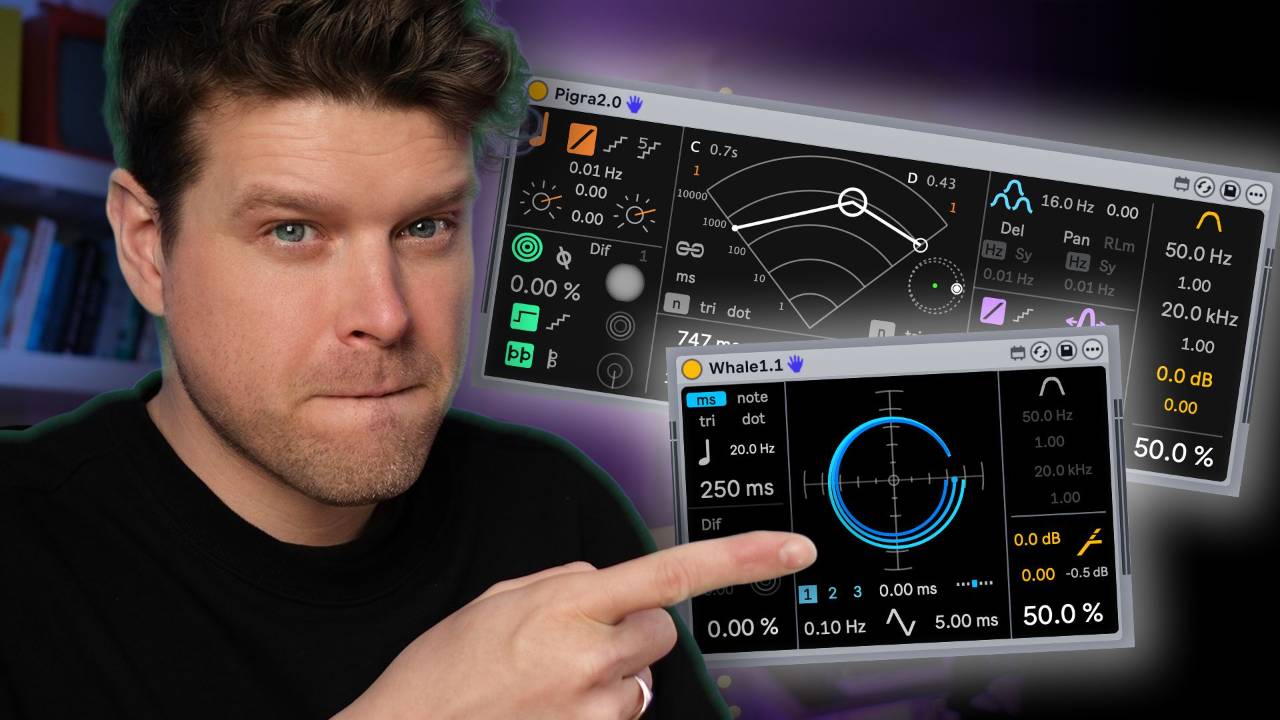
If you want controlled chaos and evolving movement in Ableton Live, Pigra 2 and Whale are the kind of Max for Live devices that instantly wake up static sounds. They behave more like mini modular rigs than simple delays, constantly shifting, mutating and surprising you in musical ways.
Key takeaways (read this first)
-
Pigra 2 and Whale behave like modular rigs inside Ableton Live, not simple delays.
-
Whale focuses on delay, diffusion, chorus and filtering for thick, animated textures.
-
Pigra 2 pushes multiple delays around the stereo field for moving, evolving spaces.
-
Both devices excel at turning static parts into living, shifting soundscapes.
-
Perfect for leads, pads, textures and anything that feels too clean or predictable.
What decision are you really making about Pigra 2 and Whale?
You’re deciding whether these should be your go-to “make it move” devices in Ableton Live.
If you mainly want clean, predictable delay or subtle chorus, your stock plugins are enough. But if you love sounds that evolve, shimmer and occasionally misbehave, Pigra 2 and Whale are absolutely worth learning.
What makes Pigra 2 and Whale different from normal Max for Live devices?
Most delays and choruses are about repeatable, predictable results. Set the time, set the feedback, done.
Pigra 2 and Whale, on the other hand, feel like someone crammed a small modular system inside Ableton Live. They’re:
-
Unpredictable (in a good way) – movement and modulation constantly shift the sound.
-
Deep but playable – clear sections, dials and visual feedback keep things navigable.
-
Designed to evolve – they’re built to move and morph, not just sit there and repeat.
They’re still delays and modulation tools at the core, but the way they respond, move and interact makes them feel alive rather than static.
How does Whale turn a simple sound into evolving movement?
Whale is the “gateway chaos” device – easy to grasp, wild when pushed.
How is Whale laid out on screen?
Whale is divided into five clear sections so you always know what you’re touching:
-
Delay section – sets how quickly echoes repeat (note values or milliseconds).
-
Diffusion + feedback section – smears and sustains the repeats into a cloud.
-
Chorus visualisation/editing area – shows and controls detuned voices.
-
Filter section – shapes the tone of the effect with frequency and Q.
-
Output section with drive – adds saturation and final level control.
Everything you tweak feels like part of one big, animated delay/chorus engine, not separate boxes.
How do delay, diffusion and feedback behave in Whale?
Whale can start with a simple quarter-note delay you’d recognise from any standard delay. Then it gets interesting:
-
You can switch delay time to triplets, dotted notes or milliseconds.
-
Diffusion turns sharp repeats into a softer, reverb-like smear.
-
Feedback lengthens the tail, with a warning “danger zone” when things get intense.
Turn diffusion off and drop feedback and it’s quite tame. Bring both back up and the delay blooms into a swirling wash that fills space without completely drowning the original sound.
How does Whale’s chorus and modulation add character?
Whale’s chorus section is where things go from “nice” to “wait, what just happened?”
You can:
-
Set the rate (how fast the modulation moves).
-
Set the depth (how far the detuned voices spread).
-
Choose the modulation waveform (sine or triangle).
-
Adjust stereo width, from narrow and focused to huge and wide.
The result is a sound that never quite plays the same way twice, especially when combined with delay and diffusion.
When does Whale work best in a track?
Whale shines whenever a sound feels too straight or too clean. It’s especially good on:
-
Eerie leads that need movement and space.
-
Pads that should drift around rather than sit still.
-
Ambient textures where you want delays to blur into chorus-like motion.
If you like subtle movement, keep the settings gentle. If you like complete woozy chaos, push feedback, depth and diffusion harder and let it run.
How does Pigra 2 create controlled chaos in the stereo field?
If Whale is the gateway drug, Pigra 2 is the deep end. It’s more complex, but you don’t need to understand every detail to get great results.
What does Pigra 2’s stereo visualisation actually show?
The most striking part of Pigra 2 is a big stereo field visualisation. It isn’t just eye candy – it tells you how delays are spread across left and right.
From that section you can:
-
Control two main delays, then split them into three for extra complexity.
-
Move the delay points around, changing both position and delay time.
-
Increase depth, making the movement more extreme.
As you drag things around, you’ll see the delay time increase or decrease, which instantly changes the feel of the groove.
How do timing and locking keep Pigra 2 musical?
For all its chaos, Pigra 2 stays locked to your track if you want it to.
You can:
-
Lock delays to dotted rhythms or straight note values.
-
Switch to milliseconds for more experimental timings.
-
Rotate the delays and dry signal together, creating circular motion in the stereo field.
This means you can decide whether Pigra 2 behaves like a clever rhythmic delay or a completely unruly sound-design machine.
How do diffusion, feedback and routing add extra madness?
Pigra 2 also gives you:
-
Different diffusion types to smear the repeats.
-
A feedback control that can be pushed or held back.
-
Options to run delays in series or in parallel.
-
Controls over how delays are spread across the stereo field.
There’s even a “bubble mode” style area which makes things sound outright wild, especially when:
-
You turn delay on pan,
-
Sync delays differently (for example, a 16th on one side, dotted quaver on the other),
-
Then scan through frequencies and pitch the delays upwards.
That’s where Pigra 2 goes from “interesting texture” to full-on animated sound sculpture.
When should you reach for Pigra 2 instead of Whale?
Think of it like this:
-
Use Whale when you want a beautiful, evolving delay/chorus that’s still easy to grasp.
-
Use Pigra 2 when you want movement across the stereo field and you’re happy to go deeper.
Typical use-cases:
-
Whale for “make this sound prettier and wider”.
-
Pigra 2 for “make this sound like it has its own internal orbit”.
They overlap, but Pigra 2 is more about position and motion in space, while Whale leans into texture and thickness.
How do you get started with Pigra 2 and Whale in your own track?
You don’t need to know every parameter name to get something inspiring. Try this simple starting workflow:
-
Drop Whale or Pigra 2 on an interesting sound
Pick a lead, pad or texture that already has character. These devices enhance, rather than rescue, dull sounds. -
Choose a sensible starting delay time
Start with a quarter-note delay or similar. Keep feedback moderate so you can hear what each control does before things get out of hand. -
Dial in diffusion and feedback gradually
For both devices, slowly raise diffusion and feedback until you feel the sound starting to bloom and smear in a pleasing way. -
Add modulation and stereo width
On Whale, increase chorus rate/depth and widen the stereo field. On Pigra 2, move delay points and adjust rotation so the sound starts to orbit around your head. -
Lock timings to keep it musical
Use dotted and triplet notes or sync options rather than pure milliseconds at first. This keeps everything moving but still in time with the grid. -
Automate one or two “hero” controls
Pick a single control – like diffusion amount, stereo depth or rotation – and automate it over your arrangement. Let the effect evolve with the track. -
Save your favourite chaos as presets
When you hit a sweet spot, save it. That way Pigra 2 and Whale become your personal library of moving spaces, not just random chaos machines.
Where do you get Pigra 2 and Whale?
In the original walkthrough, both devices are introduced as available via Isotonic Studios. That’s the hub for these Max for Live tools, developed by Mudjaq and aimed at producers who like pushing Ableton beyond the obvious.
Top 10 Max for Live FAQs for Ableton Live Users
1. What are some must-have Max for Live devices for Ableton Live users?
A few Max for Live devices feel practically essential because they greatly expand what Live can do. Convolution Reverb Pro gives you a powerful convolution reverb for realistic or creative spaces. Granulator II (by Robert Henke) is a famous granular sampler that turns any audio into lush pads, drones and experimental textures. Also, the modulation devices LFO and Envelope Follower let you modulate almost any parameter in Live in ways the stock tools alone cannot. Many of these come with Live Suite or the free Max for Live Essentials pack, and they can transform your sound design and workflow.
2. Where can I find and download Max for Live devices (and are there good free ones)?
You can find Max for Live devices in several places. The Packs store from Ableton offers curated M4L devices that are tested and supported. The biggest community hub is maxforlive.com, which hosts a huge range of user-created devices, from simple utilities to wild experimental instruments. Many are free or pay-what-you-want. To install a device, you usually just download the .amxd file and drag it into Ableton Live, just like adding a normal device.
3. How can I add more modulation or randomisation to my music using Max for Live?
Max for Live excels at extra modulation and human feel. Devices like LFO or Shaper let you attach an LFO to virtually any knob in Live, adding instant movement to filters, panning, effects and more. Envelope Follower can turn any audio signal into a modulation source, so a drum hit can shape a synth filter, for example. For randomness, Randomiser-style devices can tweak instrument or effect settings in controlled but unpredictable ways. Together, these tools give you modular-synth style control inside Live, so your loops feel more alive and less static.
4. Which Max for Live devices are great for sound design and experimental effects?
Max for Live is a sound designer’s playground. Granulator II is a top choice for evolving pads, textures and drones from any sample using granular synthesis. Collections like IRCAMAX from IRCAM offer spectral and experimental effects for “alien” textures. Convolution Reverb Pro lets you use impulse responses to create anything from realistic rooms to warped, otherworldly reverbs. You’ll also find spectral processors, granular delays and glitch effects in the wider M4L ecosystem, all geared towards unique and experimental sound design.
5. What Max for Live devices offer unique delay effects beyond Ableton’s stock delays?
If you want delays that go beyond standard Ping Pong or Echo, Max for Live has many creative options. Some devices focus on lush, modulated echoes with a distinct character, while others, like multi-tap delays, give you a fixed number of taps with individual timing, panning and volume controls for each echo. There are tape-style delays for warm vintage echoes, granular delays that pitch-shift or randomise the repeats, and spatial delays that bounce around the stereo field. These tools are ideal when you want delays that are truly ear-catching and distinctive.
6. What are some weird or experimental Max for Live effects I can try out?
If you enjoy weird and experimental processing, Max for Live is perfect. There are devices designed specifically to mangle and “destroy” sounds in creative ways, producing glitch, chaos and noisy artefacts. Many developers release packs of experimental devices, from physics-inspired sound generators to multi-effects that slice and reassemble your audio in real time. Official Max for Live devices, such as pitch-shifting delays and vintage digital-style processors, also offer off-the-wall textures. If you want alien soundscapes, glitchy breaks or simply something you have never heard before, you will find a device for it in the M4L world.
If you are interested in learning Ableton Live 12 or the Push 3 in a bit more detail, check the course here:
