
How to Record Hardware Synths in Ableton Live (Latency Free)
Jan 07, 2026
How to Record Hardware Synths in Ableton Live (Latency Free)
The best way to record hardware synths in Ableton Live latency‐free is to combine correct audio and MIDI routing with Ableton’s External Instrument device. When set up properly, your hardware synth behaves like a native instrument — tight, in time, and easy to record.
This guide shows you the complete workflow - connecting your synth, configuring Ableton Live, recording audio and automation, and monitoring without delay.
Key Takeaways
-
Record hardware synths in Ableton Live using External Instrument.
-
Correct audio + MIDI routing is essential for timing accuracy.
-
Hardware latency can be measured and compensated inside Live.
-
You can record knob movements as MIDI automation.
-
Direct monitoring removes latency while recording performances.
What’s the Best Way to Record Hardware Synths in Ableton Live?
The most reliable way to record hardware synths in Ableton Live is to use a single MIDI track with the External Instrument device.
This avoids timing problems caused by using separate MIDI and audio tracks and gives you control over hardware latency compensation directly inside Live.
How to Connect a Hardware Synth to Ableton Live
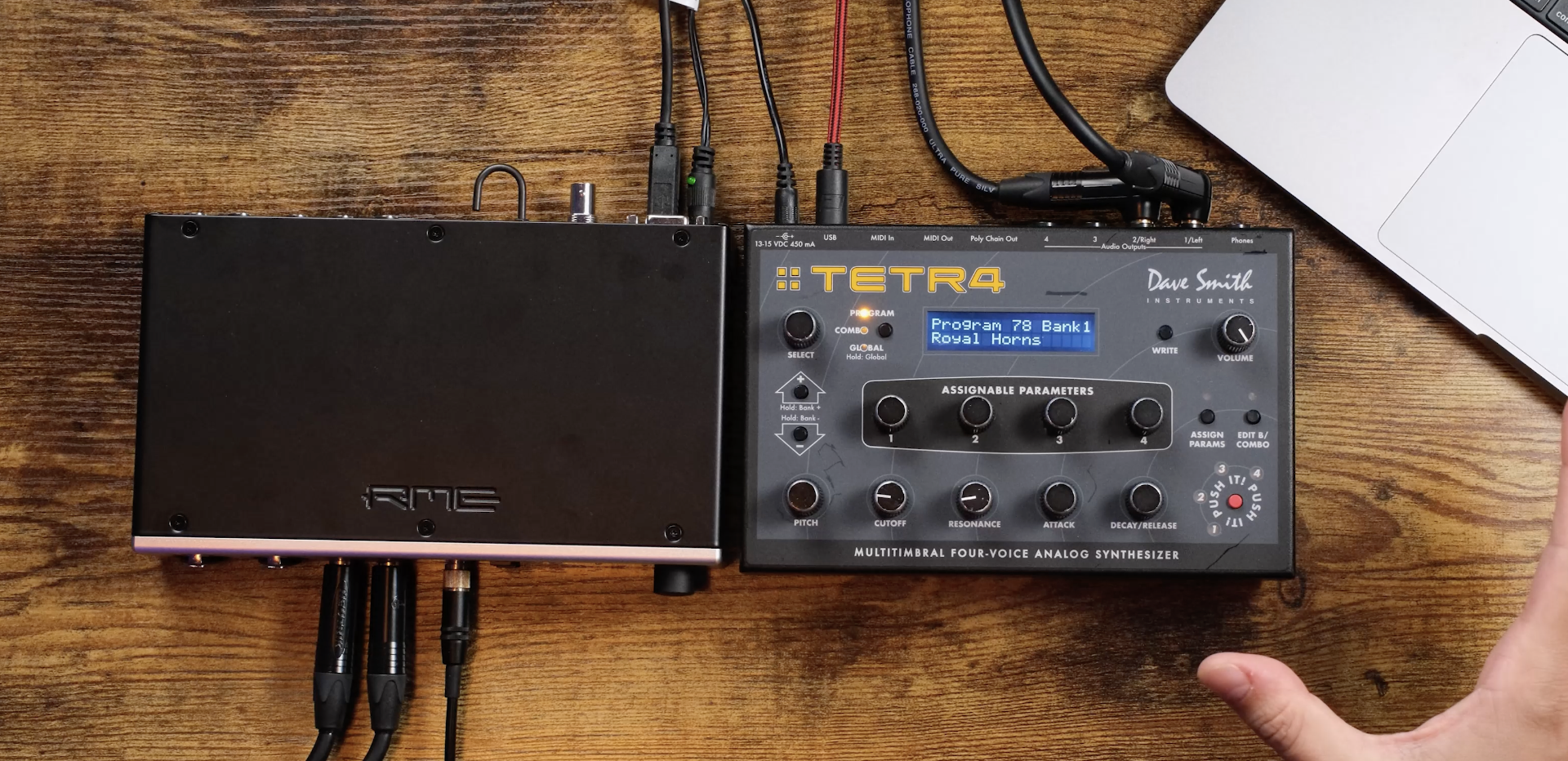
Audio Connection
-
Mono synth - 1 line‐level input.
-
Stereo synth - 2 line‐level inputs.
-
Set your audio interface inputs to Line, not Mic.
MIDI Connection
-
USB MIDI: Simple and fine for studio use.
-
MIDI DIN (5‐pin): Better for live setups and older synths.
For MIDI DIN:
-
Connect MIDI Out (interface) → MIDI In (synth).
-
Most audio interfaces include MIDI ports.
How to Configure Ableton Live for Hardware Synth Recording
Audio Preferences
-
Go to Live → Preferences → Audio.
-
Select your audio interface.
-
Enable the input(s connected to your synth).
-
Rename inputs for clarity (optional but recommended).
MIDI Preferences
-
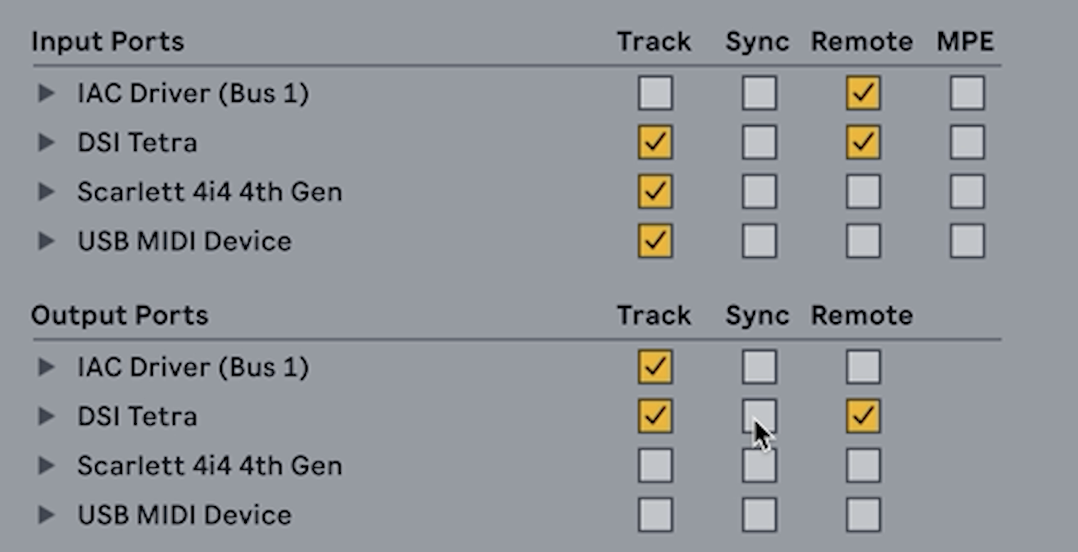
Go to Link / Tempo / MIDI.
-
Enable Track and Remote for the synth input and output.
-
Enable Sync on the output if syncing arpeggiators or sequencers.
How to Send MIDI to a Hardware Synth in Ableton Live
-
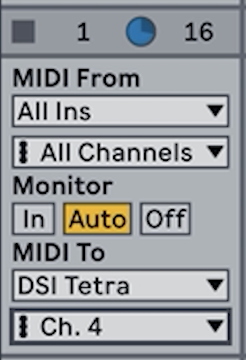
Create a MIDI track.
-
Add a MIDI clip.
-
Under MIDI To, select:
-
The synth (USB), or
-
The audio/MIDI interface (DIN).
-
-
Set the correct MIDI channel.
Tip: Use a unique MIDI channel for each synth to prevent conflicts.
How to Record Hardware Synths in Ableton Live Latency‐Free
Use the External Instrument Device
-
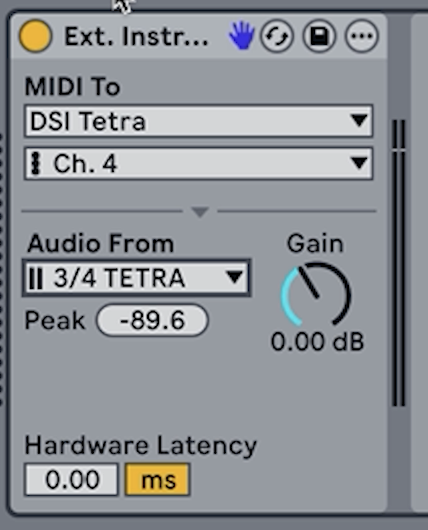
Add External Instrument to your MIDI track.
-
Set:
-
MIDI To - your synth + MIDI channel.
-
Audio From - the synth input(s).
-
-
Play the clip — MIDI goes out, audio comes back on the same track.
Ableton Live automatically compensates for round‐trip latency, keeping your recordings tight.
How to Fine‐Tune Hardware Latency in Ableton Live
If your recording is still slightly off:
-
Right‐click the track - Bounce to New Track.
-
Zoom in and measure the offset.
-
Enter the value (e.g. 4 ms) into the Latency field of External Instrument.
-
Bounce again to confirm timing is corrected.
This accounts for internal hardware processing latency, which differs between synths.

How to Record Hardware Synth Audio in Ableton Live
Once everything is in sync:
-
Right‐click - Bounce to New Track, or
-
Create a new Audio track:
-
Input: External Instrument
-
Choose pre‐ or post‐effects
-
Arm and record
-
Both methods preserve tight timing.
How to Record Hardware Synth Automation in Ableton Live
You can record real‐time knob movements from your synth:
-
Loop your MIDI clip.
-
Enable Session Record.
-
Move controls on the synth during playback.
-
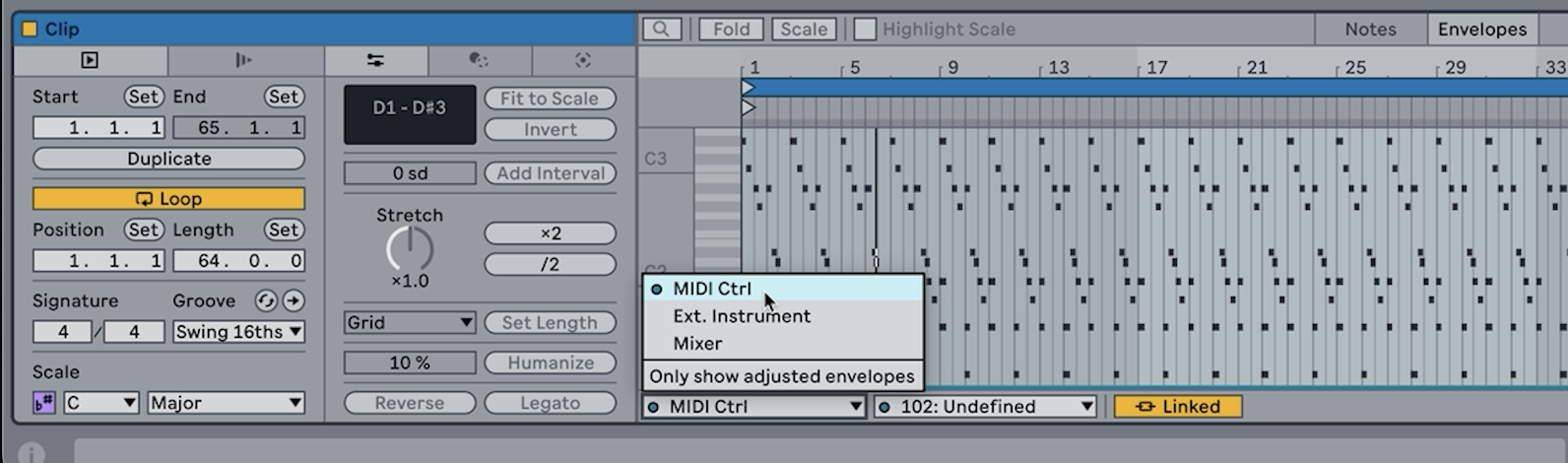
Open the clip - Envelopes - MIDI Control.
-
Automation is stored inside the clip.
When finished, bounce to audio to capture the performance and automation together.
How to Monitor Hardware Synths Without Latency in Ableton Live
Reduce Latency When Monitoring
-
Enable Options - Reduce Latency When Monitoring.
-
Prevents Ableton Live from over‐compensating while tracking.
Direct Monitoring (Zero‐Latency Option)
-
Set track monitor to Off.
-
Enable direct monitoring on your audio interface.
-
Set External Instrument latency back to 0.
-
Record with no perceptible delay.
Final Recommendation
To record hardware synths in Ableton Live cleanly and confidently:
-
Patch audio and MIDI correctly
-
Use External Instrument on a single MIDI track
-
Compensate for hardware latency
-
Choose the right monitoring method
Once set up, your hardware synths will feel and record like native instruments inside Ableton Live.
Top FAQs: Recording Hardware Synths in Ableton Live
How do you record hardware synths in Ableton Live latency‐free?
To record hardware synths in Ableton Live latency‐free, use the External Instrument device. It combines MIDI and audio on one track and lets you compensate for hardware latency so recordings stay perfectly in time.
Can you record hardware synths in Ableton Live?
Yes, Ableton Live fully supports recording hardware synths. You send MIDI from Live to the synth and record the audio back through an audio interface or the External Instrument device.
What does Reduce Latency When Monitoring do in Ableton Live?
Reduce Latency When Monitoring prevents Ableton Live from over‐compensating during monitoring, keeping timing tight when recording or playing hardware synths.
How do you avoid MIDI feedback loops in Ableton Live with hardware synths?
MIDI feedback loops usually occur when a synth sends MIDI back to Live on the same channel it receives. Disable Track or Remote on the MIDI input, or separate MIDI input and output channels.
Should Monitor be set to In or Off when recording hardware synths in Ableton Live?
Use Monitor In to hear the synth through Live’s effects. Use Monitor Off with direct monitoring to avoid doubled sound and reduce latency.
Watch the full set-up process here 👇
If you are interested in learning Ableton Live 12 or the Push 3 in a bit more detail, check the course here:
